WordPress speed optimization means making your pages load and respond quickly for real visitors, especially on phones. The biggest gains usually come from hosting, caching and images, not from switching themes. This guide walks through the work in order of impact, lists well-known free plugins with WordPress.org data checked on 15 November 2026, and shows how to measure progress against Google’s Core Web Vitals.
Start by running PageSpeed Insights on your home page and on a typical inner page, such as a blog post or product page, on mobile. Note the field data if available, which comes from real Chrome users, and the lab scores. Google treats a Largest Contentful Paint within 2.5 seconds, an Interaction to Next Paint within 200 milliseconds and a Cumulative Layout Shift below 0.1 as good. Record these numbers in a simple spreadsheet so you can see which changes actually help and which do nothing.
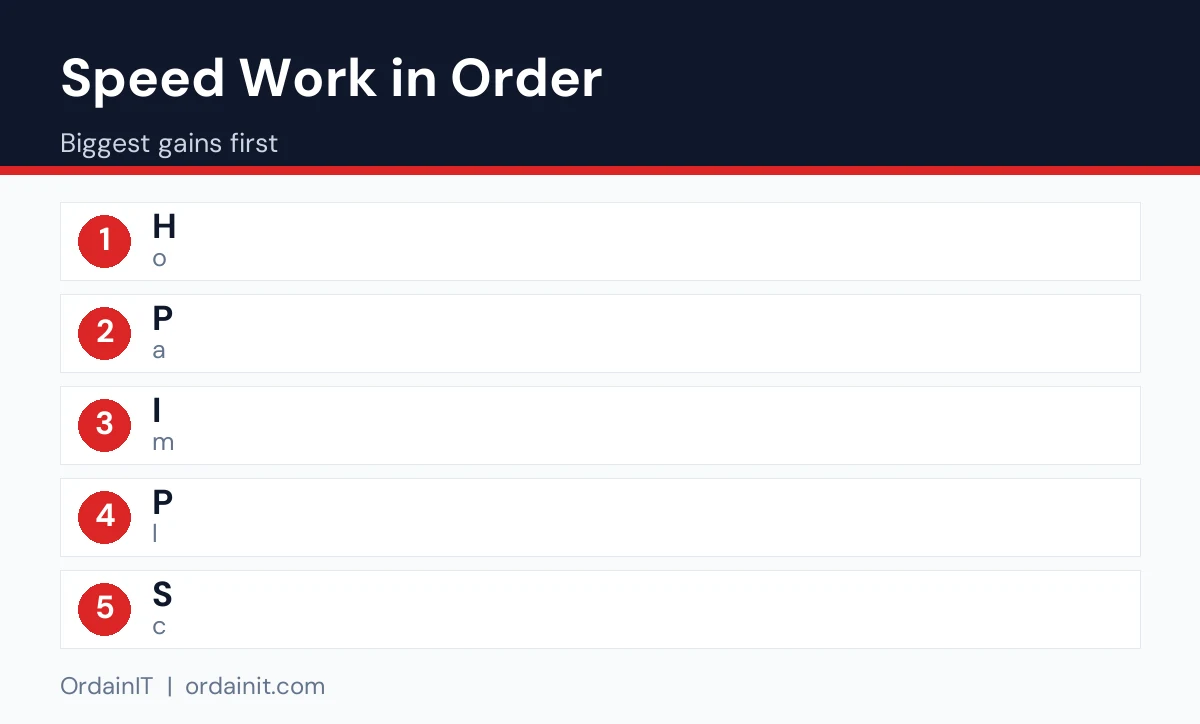
Use a host with current PHP, enough memory and server-level caching. Slow server response time sets a floor that no plugin can fix. Check the time to first byte in PageSpeed Insights or your browser’s network panel.
Serve cached HTML instead of building every page on each visit. Use your host’s cache or a caching plugin, and exclude cart, checkout and account pages on stores.
Resize images to the size they display at, convert large ones to WebP or AVIF, and keep WordPress’s native lazy loading for images below the first screen. Make sure the main above-the-fold image is not lazy-loaded.
Remove plugins you do not use and replace heavy ones. Use Query Monitor on staging to see which plugins add slow database queries or many scripts.
Delay non-essential scripts, remove unused CSS where your tools allow, host fonts locally and load only the weights you use.
Chat widgets, ad scripts, trackers and embedded videos often cost more than the theme. Keep only what earns its place and load the rest after interaction.
A lighter theme helps, but only after the steps above. In our own test of official theme previews on 15 November 2026, page weight ranged from about 43 KB to about 278 KB; see our fastest WordPress theme guide for the full results.
WordPress.org plugin API, 15 November 2026; ratings out of 100.
| Plugin | Use | Version | Active installs | Rating |
|---|---|---|---|---|
| LiteSpeed Cache | Caching (LiteSpeed servers) | 7.9.3 | 7,000,000+ | 96 |
| WP Super Cache | Caching | 3.1.5 | 1,000,000+ | 86 |
| WP Fastest Cache | Caching | 1.5.5 | 1,000,000+ | 98 |
| W3 Total Cache | Caching | 2.11.0 | 900,000+ | 88 |
| Autoptimize | CSS/JS optimisation | 3.1.17 | 800,000+ | 94 |
| EWWW Image Optimizer | Images | 8.9.2 | 1,000,000+ | 96 |
| Imagify | Images | 2.3.5 | 900,000+ | 86 |
| Performance Lab | WordPress performance features | 4.2.0 | 100,000+ | 86 |
| Query Monitor | Diagnostics | 4.1.1 | 200,000+ | 98 |

Largest Contentful Paint is usually the hero image or main heading. To improve it, serve that image at the right size in a modern format, avoid lazy-loading it, and give it a high fetch priority if your tools allow. Reduce server response time with caching, and remove render-blocking CSS or scripts that load before the main content. Interaction to Next Paint suffers when heavy JavaScript runs while visitors tap or type; delay non-essential scripts, break up long tasks and reduce third-party widgets. Cumulative Layout Shift comes from images without dimensions, late-loading fonts and ads or banners that push content down; set width and height on media, reserve space for embeds and use font-display settings that avoid large jumps.
WooCommerce stores need extra care in any WordPress speed optimization plan. Cart, checkout and account pages cannot be fully page-cached, so server speed and database health matter more. Use object caching if your host offers it, clean up expired transients and old sessions, and limit the number of products per category page. Test checkout with every payment method after each change, because aggressive script optimisation can break payment widgets.
Over time, WordPress databases collect post revisions, spam comments, expired transients and leftover tables from removed plugins. Limit revisions, empty spam and trash regularly, and remove tables only after confirming the plugin is gone for good. Always back up before cleaning. A tidy database speeds up the admin area and uncached pages.
Page builders add their own CSS and JavaScript to every page they control. If you use Elementor or a similar builder, enable its performance features such as optimised asset loading, avoid nesting many sections inside each other, and limit animations and sliders. Use the builder’s global colours and fonts instead of styling each widget separately, which reduces the CSS generated. If a page is mostly static text, consider building it with the block editor instead. OrdainIT themes such as Buconz are built on Elementor and checked for speed before release, but every site still needs the hosting, caching and image steps above.
WordPress speed optimization is not a one-time job. New plugins, larger images, marketing scripts and theme updates slowly add weight. Set a monthly check: run PageSpeed Insights on your top pages, review the Core Web Vitals report in Google Search Console, and look at which plugins were added since last time. Fix regressions quickly while you still remember what changed. Before adding any new plugin or third-party script, ask whether its value is worth the extra load on every page.
If you have worked through these steps and pages are still slow, the cause is usually hosting resources, a heavy plugin you cannot remove, or custom code. At that point, a developer with profiling tools can find the bottleneck faster than more trial and error. Share your before-and-after measurements with them so they start from evidence.
Plugin versions and install counts in this guide were checked on 15 November 2026; we update them when they change.
A simple WordPress speed optimization checklist: confirm current PHP and server caching, enable one page cache, compress and resize images, remove unused plugins, delay non-essential scripts, host fonts locally, and re-test on mobile. Repeat the test after every major site change so improvements are not quietly undone by new plugins, larger images or added marketing scripts over the following months.
Before you change anything, record your current PageSpeed Insights scores for mobile and desktop and keep a full backup. Then apply one fix at a time and retest, so you know exactly which change helped and which one caused a problem.
Usually better hosting with page caching, then optimised images. Those two steps often bring the largest improvements.
It depends on your host. LiteSpeed Cache suits LiteSpeed servers; WP Super Cache and WP Fastest Cache are simple options elsewhere. Use only one.
Yes, but hosting, images, plugins and third-party scripts usually matter more.
LCP within 2.5 seconds, INP within 200 milliseconds and CLS below 0.1.
No. Caching helps, but a slow server still slows uncached pages, logged-in users and checkout.
Chosen a theme or template? The OrdainIT team, which designs and builds its own WordPress themes and templates, can also get your website live. Pick a fixed-price service:
Want a design to start from? Browse OrdainIT WordPress themes, each with free installation and lifetime updates, or see all WordPress services. Not sure what you need? Contact OrdainIT for a free, no-obligation quote.
See OrdainIT’s themes and customer ratings on OrdainIT’s ThemeForest profile.