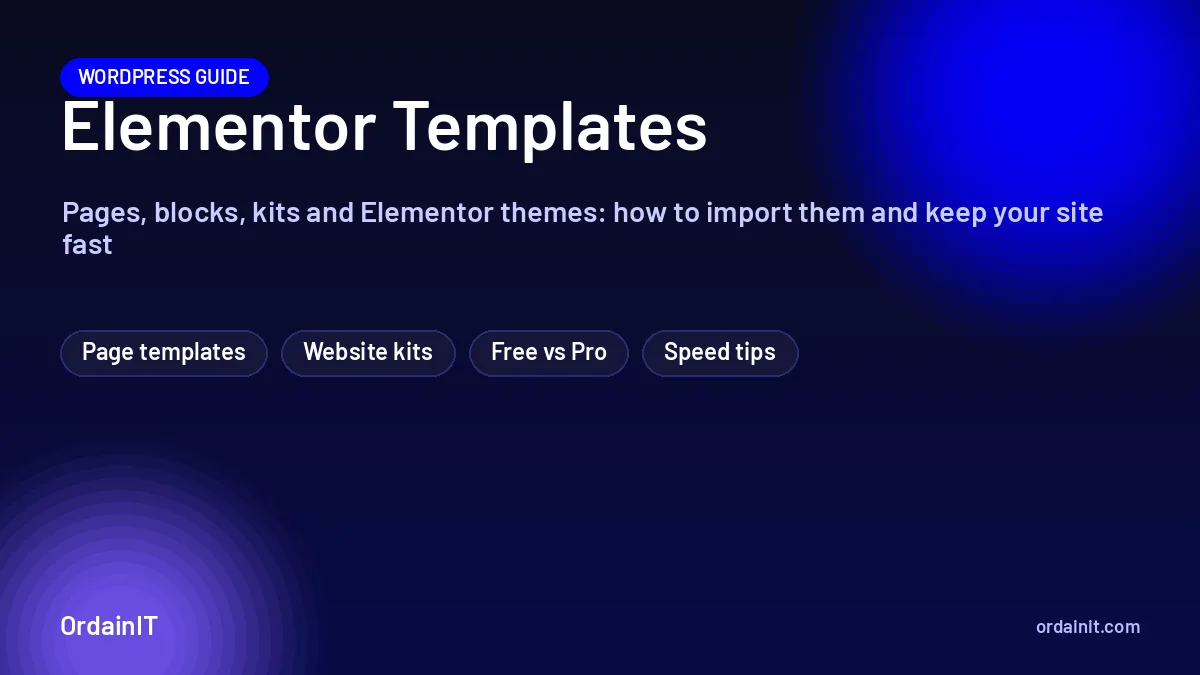
Elementor templates are pre-designed pages, sections or complete website kits made for Elementor, the drag-and-drop page builder for WordPress. You import a template, then edit text, images and colours visually without writing code. Templates come in three main forms: single page templates, reusable blocks or sections, and full website kits that include every page plus global colours and fonts. You can also get them bundled inside a WordPress theme built for Elementor.
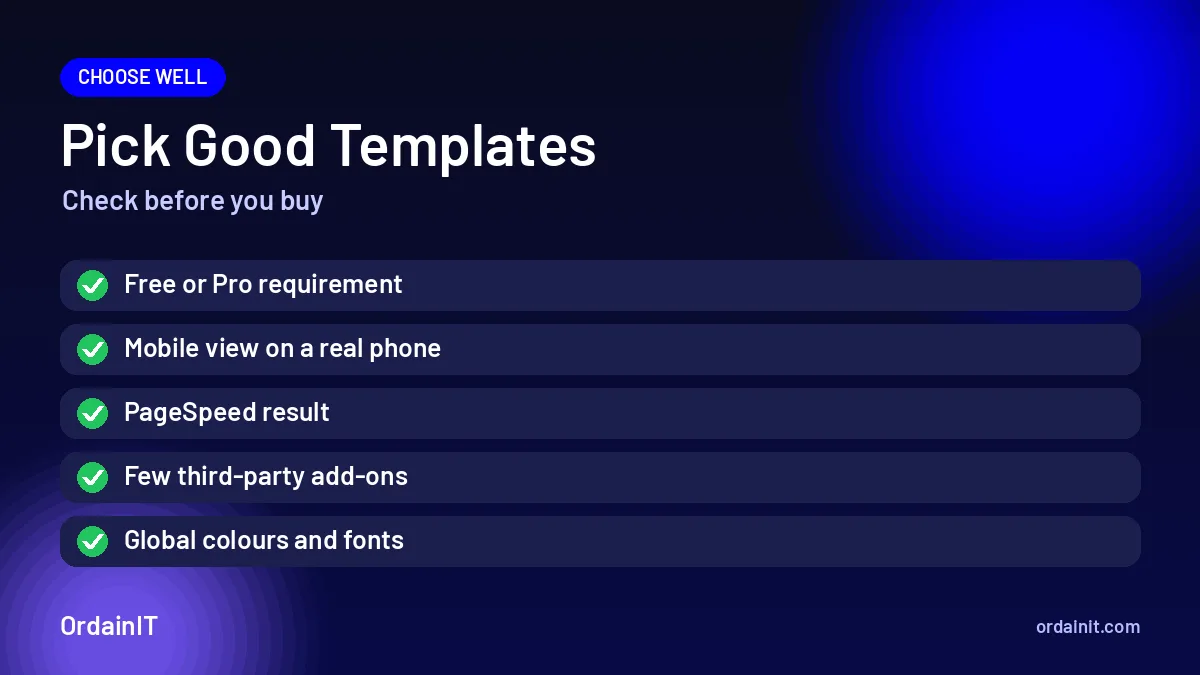
Key takeaways: a theme built for Elementor gives the most consistent result; check whether a template needs Elementor Pro before you buy; and keep pages lean, because heavy Elementor layouts can slow a site down.
| Type | What it includes | Best for |
|---|---|---|
| Page templates | One full page layout, such as a home or about page | Adding a page to an existing site |
| Blocks or sections | Hero, pricing table, testimonials, FAQ | Building custom pages faster |
| Website kits | All pages, header, footer, global styles | Launching a complete site |
| Theme Builder templates | Header, footer, single post, archive, 404 | Full design control (usually Pro) |
| Elementor-ready WordPress themes | Theme plus demo pages built in Elementor | Industry sites with support and updates |
Elementor’s free version includes the editor, basic widgets and a set of free templates. Elementor Pro adds the Theme Builder, popup builder, form widget, dynamic content and more widgets, plus access to the full template library. Many third-party templates and kits need Pro widgets, so read the requirements first. If a kit needs Pro and you only have the free version, parts of the layout may not appear after import. Pricing and plan details change, so check Elementor’s official site before buying.
New to WordPress themes? See our step-by-step guide on how to install a WordPress theme.
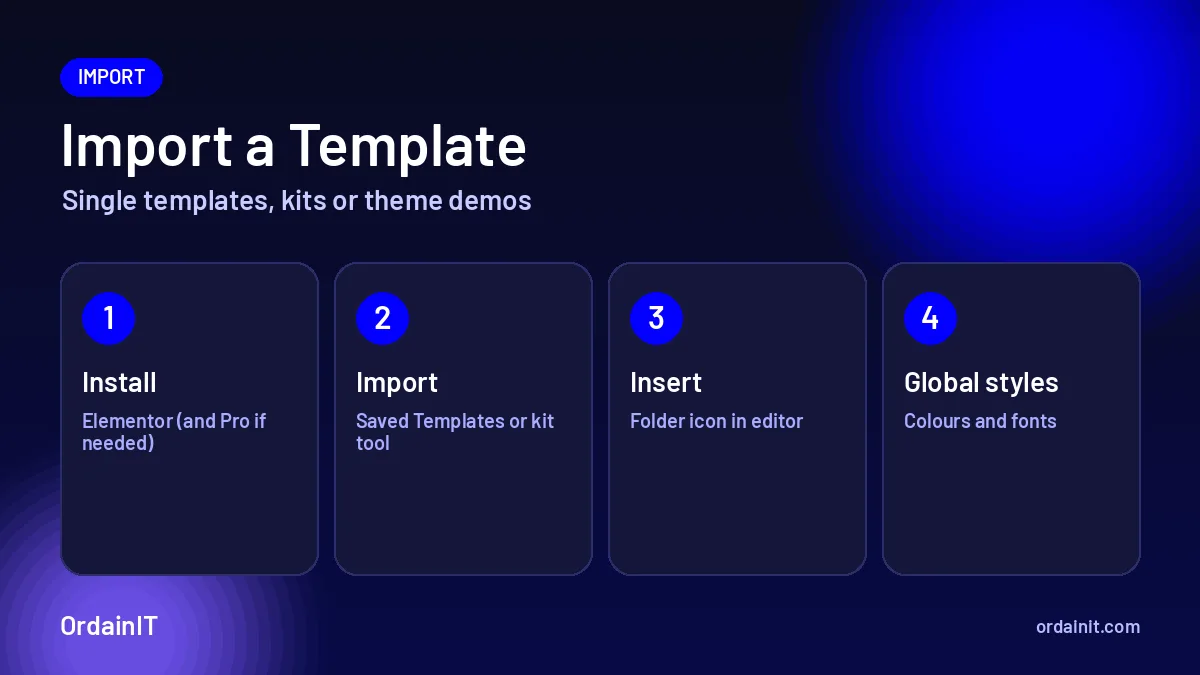
Once the layout is in place, work from the general to the specific so the site stays consistent:
Keep a staging copy of the site for big changes. Elementor’s revision history helps you undo edits, but a staging site lets you test plugin and theme updates safely before they reach visitors.
WordPress also has its own block editor, sometimes called Gutenberg, with full site editing in block themes. The block editor is built into WordPress and usually produces lighter pages, but it offers fewer design controls out of the box. Elementor gives more visual freedom, a large widget library and an editing experience many beginners find easier. If you want maximum speed with minimal plugins, a block theme is worth considering; if you want to design visually and quickly, Elementor remains a popular, well-supported choice.
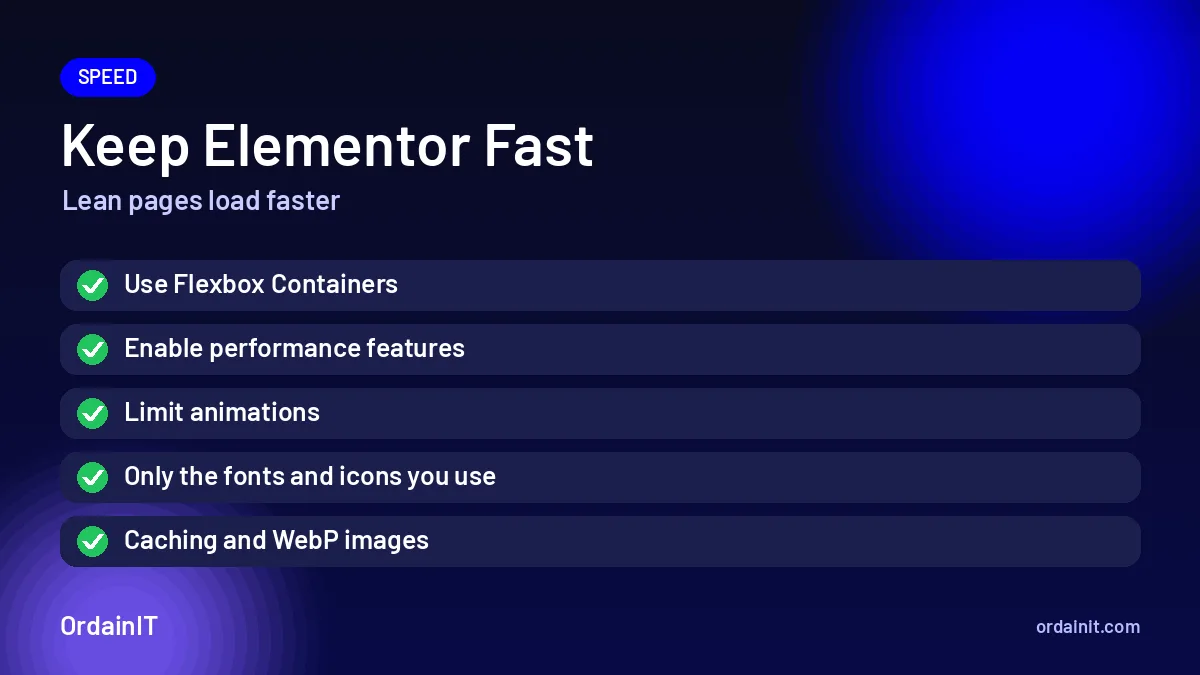
Elementor can produce fast sites, but layouts with many nested sections, animations and widgets add code to every page. A few habits keep performance healthy:
Our guide to an SEO friendly WordPress theme explains Core Web Vitals and how to check them.
Search engines see the HTML that Elementor outputs, so structure matters. Use the Heading widget’s HTML tag setting to keep one H1 per page and logical H2 and H3 headings, rather than choosing headings by size. Add alt text to every image widget. Write real text in each section instead of placing words inside images. An SEO plugin such as Rank Math or Yoast handles titles, meta descriptions and schema alongside Elementor.
All OrdainIT WordPress themes are built with Elementor and come with industry-specific demo pages you can import and edit visually. For example, our construction company WordPress theme includes five home pages plus service, project, team, blog and contact pages. Most themes cost $13, and the WordPress theme bundle covers 19 themes. Open any demo, test it on your phone and run a speed test yourself. If you want everything installed for you, our Professional Website Setup service costs $99.
Pre-designed pages, sections or full website kits for the Elementor page builder that you import into WordPress and edit visually.
Some are. Elementor includes free templates, while many premium kits and themes require payment and sometimes Elementor Pro.
Not always. Check each template’s requirements; Theme Builder templates, popups and form widgets usually need Pro.
Heavy layouts can. Using containers, fewer add-ons, compressed images and caching keeps Elementor sites fast.
Most work with any well-coded theme, but a theme built for Elementor gives the most consistent design and fewest conflicts.
Chosen a theme or template? The OrdainIT team, which designs and builds its own WordPress themes and templates, can also get your website live. Pick a fixed-price service:
Want a design to start from? Browse OrdainIT WordPress themes, each with free installation and lifetime updates, or see all WordPress services. Not sure what you need? Contact OrdainIT for a free, no-obligation quote.
See OrdainIT’s themes and customer ratings on OrdainIT’s ThemeForest profile.



We reply 24 hours a day, Monday to Saturday. Sunday is our day off.