A website maintenance checklist is a short, repeatable list of tasks that keeps your site secure, fast and accurate: backups, updates, security checks, speed tests, broken-link fixes and content reviews, each done on a set schedule. Most small sites need about 15 minutes a week, an hour a month and half a day a year. This guide gives you the full schedule, how long each task takes, and what to do when an update breaks something.
Key takeaways: back up before every update, check the site on a phone after every change, and put the yearly tasks (domain, SSL, licences, content review) in your calendar now so they never expire by surprise.
Why a Website Maintenance Checklist Matters
Most website problems are slow, quiet failures: an expired plugin licence, a contact form that stopped sending email, a page that loads in eight seconds on mobile, an old price nobody updated. None of these show up as an error message. A checklist turns “I should look at the site sometime” into a few fixed habits, so you catch problems before customers or search engines do.
Security: outdated themes and plugins are a common way sites get hacked.
Search visibility: broken pages, slow loading and stale content can all hurt rankings.
Sales and leads: a broken form or checkout costs money every day it goes unnoticed.
Lower repair bills: fixing a small issue early is cheaper than an emergency rebuild.
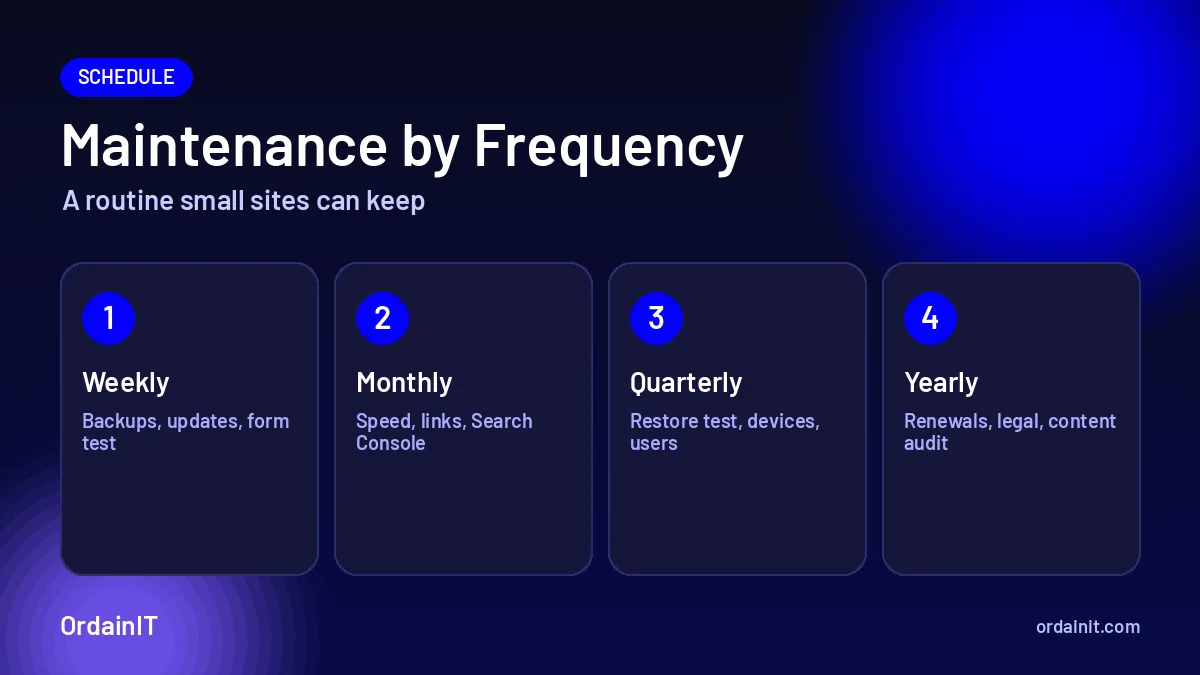
Website Maintenance Checklist by Frequency
This table is the core of the routine. Times are typical for a small WordPress or HTML business site.
How often
Tasks
Typical time
Weekly
Check backups ran, apply safe updates, test the main form, glance at uptime alerts
Test a full restore, review top pages, check browsers and devices, review user accounts
2–3 hours
Yearly
Domain, SSL, hosting and licence renewals; legal pages; full content and design review
Half a day
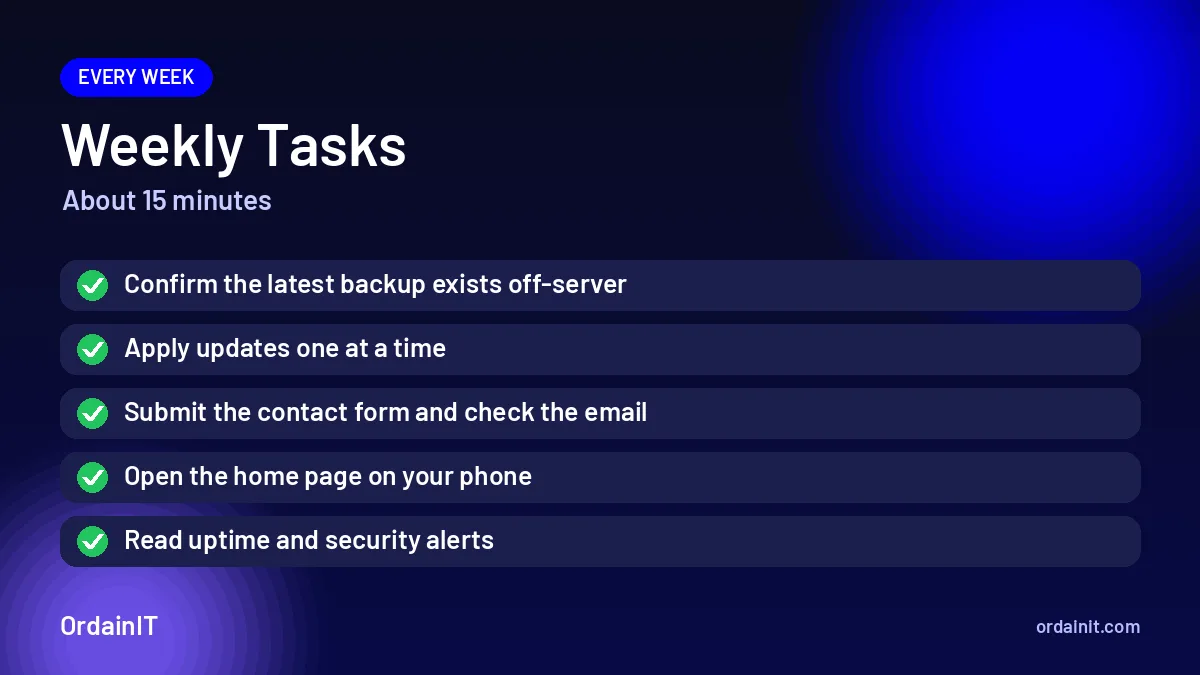
Weekly Website Maintenance Tasks
Confirm the latest backup exists and is stored somewhere other than your hosting account.
Apply updates to WordPress core, your theme and plugins, one at a time, after the backup.
Submit your contact form and make sure the email arrives.
Open the home page on your phone and check that nothing looks broken.
Read uptime and security alerts from your monitoring tool or hosting panel.
Monthly Website Maintenance Tasks
Run a speed test on your home page and one key page with PageSpeed Insights, and compare the score with last month.
Check Google Search Console for page indexing errors, Core Web Vitals warnings and manual actions.
Scan for broken links and fix or redirect them.
Delete spam comments, old drafts you will never publish and plugins you no longer use.
Check that prices, opening hours, team members and contact details are still correct.
Look at your analytics for pages that suddenly lost traffic.
Quarterly Website Maintenance Tasks
Test a restore: a backup you have never restored is only a hope. Restore it to a staging site to prove it works.
Review your top ten pages: refresh facts, screenshots and calls to action.
Test on several browsers and devices: Chrome, Safari, Firefox, Edge, plus an iPhone and an Android phone.
Review user accounts: remove old staff or freelancers and check that admins use strong passwords and two-factor login.
Check your images: compress large files and make sure each has useful alt text.
Yearly Website Maintenance Tasks
Renew the domain, ideally with auto-renew turned on, and check that the contact email on the domain is one you still read.
Confirm the SSL certificate renews automatically.
Review your hosting plan: is it still fast enough, and is the price still fair?
Renew premium theme, plugin and support licences you depend on.
Update the privacy policy, terms and cookie notice if your tools or the law changed.
Do a full content audit: update, merge or remove pages that no longer help visitors.
Decide whether the design still fits your brand or needs a refresh.
How to Set Up Your Own Website Maintenance Checklist
A copied list only works if it fits your site. Spend twenty minutes turning the schedule above into your own website maintenance checklist:
List what your site depends on: hosting, domain registrar, SSL, theme, each plugin, payment gateway, email service and any paid licence, with its renewal date.
Mark what is critical: the pages and features that bring in leads or sales, such as the contact form, booking widget or checkout.
Turn on automation: daily backups, uptime monitoring and domain auto-renew remove the tasks people forget most.
Put the tasks in your calendar as recurring events, with the checklist pasted into the event notes.
Keep a simple log: date, what you updated, anything that broke and how you fixed it. The log makes the next problem much faster to solve.
Review the list once a year. When you add a new plugin, payment method or page type, add its checks to your website maintenance checklist at the same time.
WordPress Maintenance: Extra Items to Add
WordPress sites need a few extra checks because themes and plugins come from different developers:
Check the PHP version your host runs and update it when your theme and plugins support the newer release.
Remove inactive themes except one default theme kept as a fallback.
Read the changelog before major updates to page builders or WooCommerce.
Clean the database (old revisions, expired transients) every few months.
Use a staging copy for big updates if your host offers one.
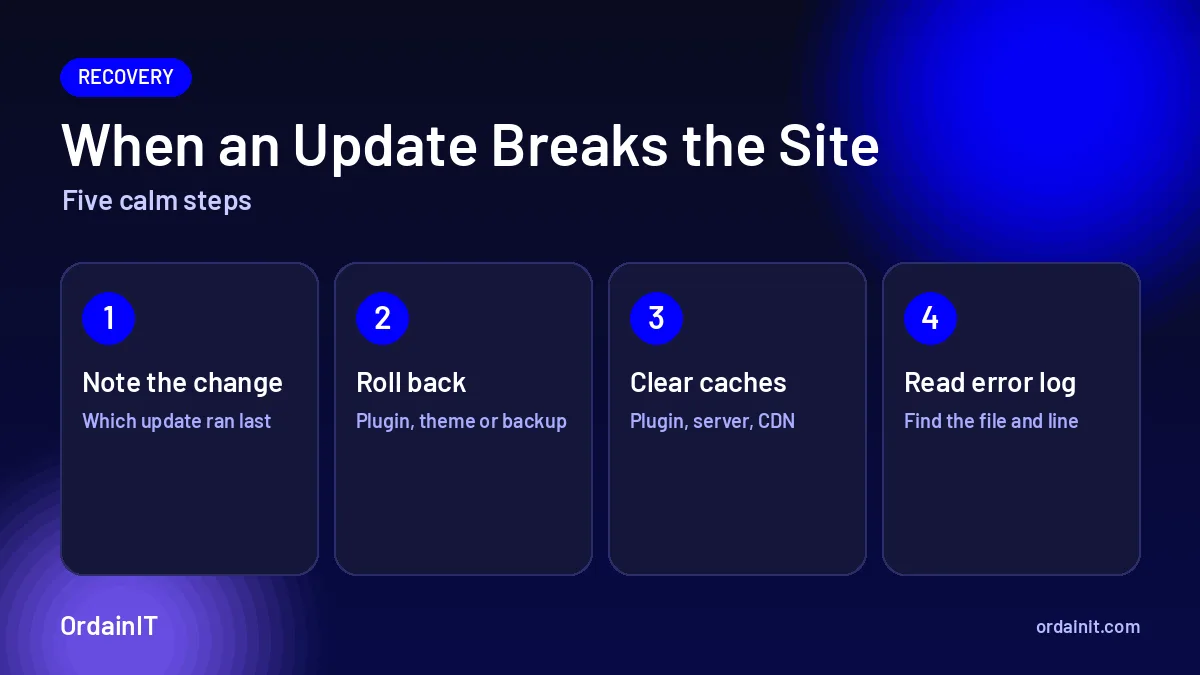
What to Do When an Update Breaks Your Site
Stay calm and note what changed: which update ran last.
Roll back that single theme or plugin, or restore the backup you took before updating.
Clear every cache: plugin cache, server cache and CDN.
Check the error log in your hosting panel for the file and line causing the problem.
Contact the developer of the theme or plugin with the error message and your versions.
If you use an OrdainIT theme and get stuck, our support team can help. For sites that cannot afford downtime, emergency WordPress repair is available as a paid service.
Do It Yourself or Use a Maintenance Plan?
Running this website maintenance checklist yourself costs nothing except time, and most small business owners can manage the weekly and monthly tasks. A maintenance plan makes sense when you have no time, run a shop where downtime loses sales, or simply do not want to touch updates. OrdainIT offers a 12-month WordPress care and maintenance plan for $99, and a separate speed and Core Web Vitals optimisation service for $99 if the site has become slow. Whichever you choose, keep your own login details and backups so you are never locked out of your own site.
Frequently Asked Questions
How often should a website be maintained?
Do quick checks weekly, a fuller review monthly, deeper tests quarterly and renewals and audits once a year. Busy online shops may need daily checks.
What does website maintenance include?
Backups, software updates, security checks, speed testing, broken-link fixes, content updates and renewing the domain, SSL and licences.
How long does website maintenance take?
For a small site, about 15 minutes a week, an hour a month and half a day a year once you have a routine.
Can I maintain my own WordPress website?
Yes. With automatic backups and a simple checklist, most owners can handle routine updates. Use a professional for major updates, hacks or speed problems.
What happens if I do not maintain my website?
Security risk grows, the site slows down, forms and features can stop working, content becomes outdated and search rankings can drop.
Chosen a theme or template? The OrdainIT team, which designs and builds its own WordPress themes and templates, can also get your website live. Pick a fixed-price service:
Professional WordPress website setup: theme installation, demo import, speed, security, backups, SEO basics and contact forms, ready in up to 3 business days.
Want a design to start from? Browse OrdainIT WordPress themes, each with free installation and lifetime updates, or see all WordPress services. Not sure what you need? Contact OrdainIT for a free, no-obligation quote.