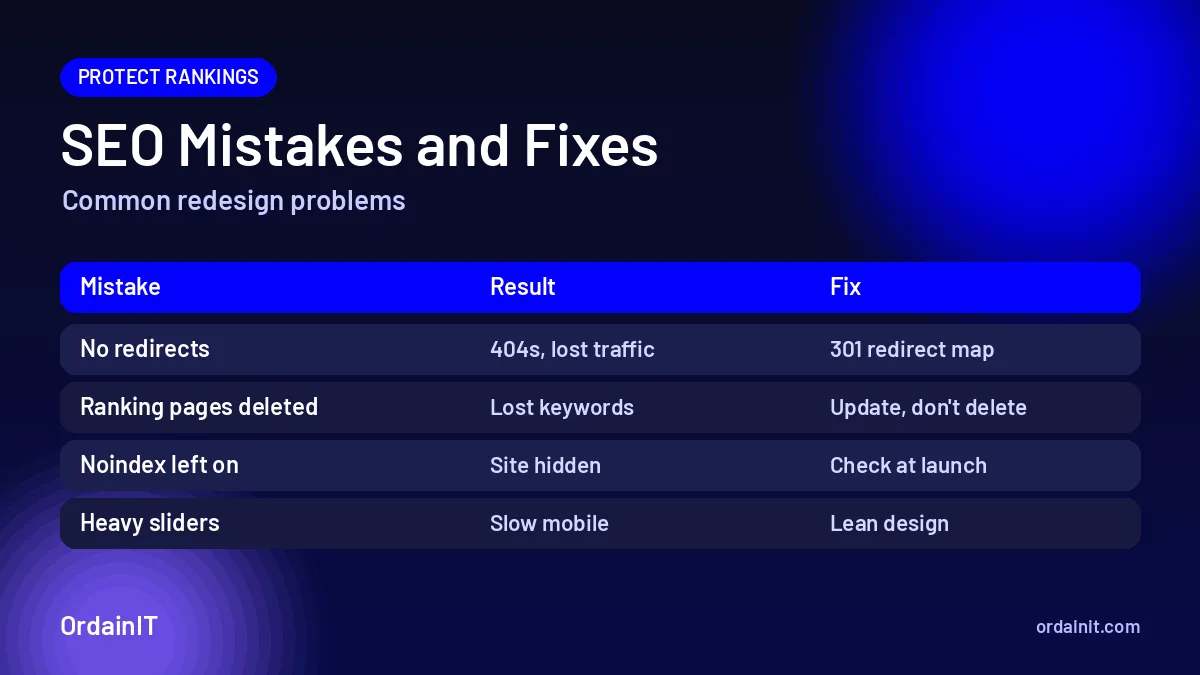
A website redesign checklist is the step-by-step list you follow to rebuild a site without losing traffic, leads or content: audit what you have, set goals, map every old URL, rebuild on a staging copy, test, launch with redirects, then monitor. The design is the visible part, but most failed redesigns go wrong on the invisible parts, such as missing redirects or deleted pages that used to rank. This checklist covers all of it in order.
Key takeaways: record your current numbers before you touch anything, keep a spreadsheet of every old URL and where it will go, and never launch without testing forms, redirects and mobile layout on the staging site first.
If only one page is the problem, a refresh of that page may be enough. Search engines and visitors both respond better to a steady site than to a full rebuild every year.
A useful test is to write down the three problems you want the new site to solve. If you cannot name them, you are not ready to redesign yet; start with the audit in Phase 1, because the numbers often show that a few targeted fixes would bring most of the benefit for a fraction of the cost.
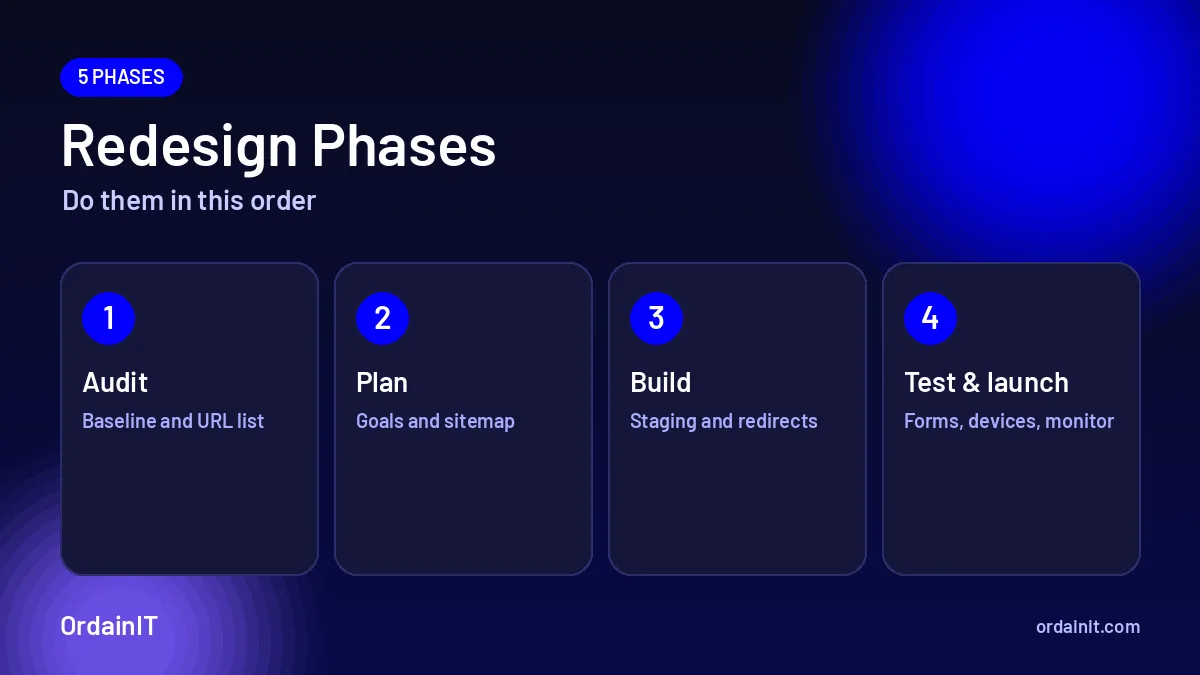
| Phase | Key tasks | Output |
|---|---|---|
| 1. Audit | Benchmark traffic, leads and speed; list all pages; find top pages and backlinks | Baseline report and URL list |
| 2. Plan | Goals, audience, sitemap, content plan, platform and template choice | Brief and new sitemap |
| 3. Build | Staging site, design, content migration, on-page SEO, redirect map | Finished staging site |
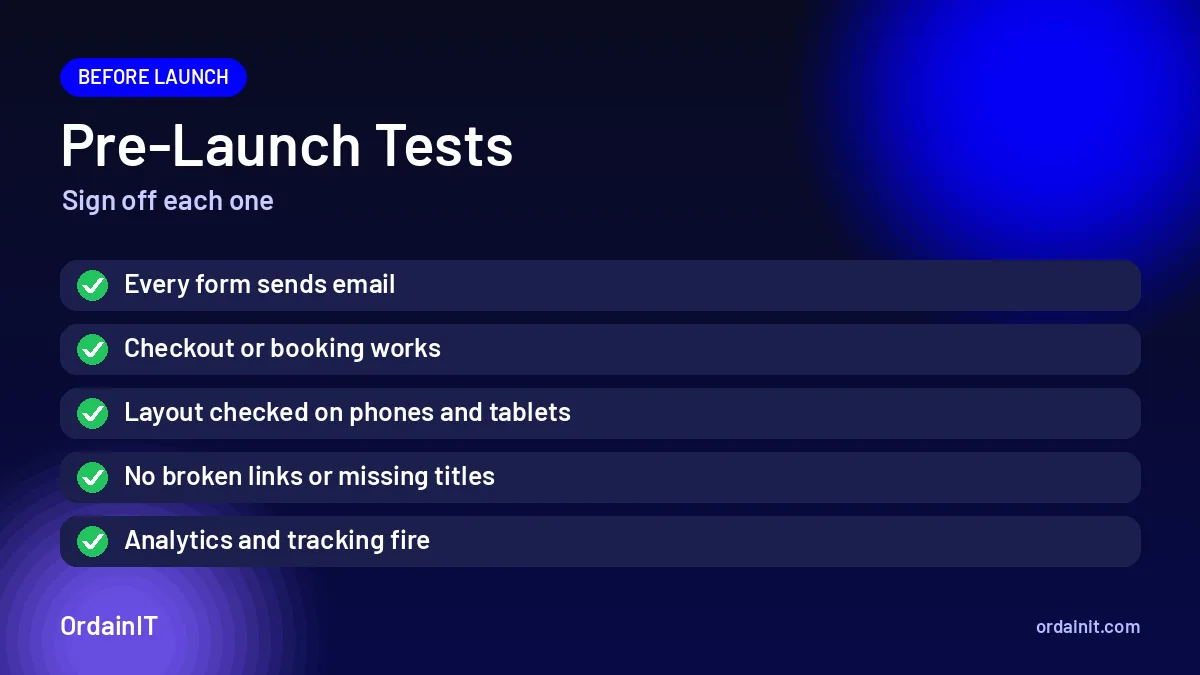
| 4. Test | Forms, devices, speed, links, accessibility, analytics | Signed-off launch list |
| 5. Launch and monitor | Go live, redirects on, sitemap submitted, watch errors and rankings | Stable new site |
The redirect map is the single most important document in any website redesign checklist. Keep it in a spreadsheet and test every row after launch:
| Old URL | New URL | Action |
|---|---|---|
| /services.html | /services/ | 301 redirect |
| /blog/old-tips-2021/ | /blog/updated-tips/ | Merge content, 301 |
| /about-us/ | /about-us/ | Keep the same URL |
| /summer-promo/ | /offers/ | 301 to closest page |
Avoid sending every removed page to the home page. Redirect each old URL to the most relevant new page, because that is what visitors and search engines expect.
Copy the five phases into a shared task list and give every task one owner and a due date. Agree on who signs off each phase before the next one starts: for example, the owner approves the sitemap, the developer confirms the staging build and someone outside the project tests the forms. Hold a short check-in each week and keep a list of decisions, so nobody reopens settled questions late in the project. When the site goes live, keep the website redesign checklist open for the monitoring phase too; the weeks after launch are when missed redirects and broken forms show up.
A redesign does not have to start from a blank page. With a ready theme or template, most of the design and front-end work is already done, so your effort goes into content, structure and SEO. Browse OrdainIT WordPress themes or HTML templates and test the live demo on your phone first. If you want help, our homepage design makeover is $150, and website migration and safe launch is $99, covering the move and the redirects that keep your rankings safe.
Many businesses redesign every three to five years, but redesign when the site no longer meets goals, not by the calendar. Small improvements in between keep it current.
It can if URLs change without redirects or ranking content is removed. With a redirect map, preserved content and careful testing, rankings usually recover quickly or improve.
A template-based redesign of a small site can take one to three weeks. Custom projects for larger sites often take two to four months.
An audit and baseline, goals, a new sitemap, content plan, staging build, redirect map, testing list, launch steps and post-launch monitoring.
Yes, whenever possible. Keeping URLs avoids redirect chains and protects rankings. When a URL must change, add a 301 redirect from the old address.
Chosen a theme or template? The OrdainIT team, which designs and builds its own WordPress themes and templates, can also get your website live. Pick a fixed-price service:
Want a design to start from? Browse OrdainIT WordPress themes, each with free installation and lifetime updates, or see all WordPress services. Not sure what you need? Contact OrdainIT for a free, no-obligation quote.
See OrdainIT’s themes and customer ratings on OrdainIT’s ThemeForest profile.



We reply 24 hours a day, Monday to Saturday. Sunday is our day off.