Here is how to install a WordPress theme: open your dashboard, go to Appearance > Themes > Add New Theme, then either search the free theme directory and click Install, or click Upload Theme, choose the theme’s .zip file and click Install Now. Click Activate to put it live. The whole job takes about two minutes; most problems come from uploading the wrong .zip file or hitting a server upload limit, and both are fixed below.
Key takeaways: back up before you switch themes, upload only the installable theme .zip (not the full download package), install the required plugins the theme asks for, and check your pages on a phone before you call the job done.
A theme changes how every page looks, so prepare for two minutes before you click Activate:
themename.zip), next to the documentation and child theme.Block or classic theme? Installation is the same for both. The difference comes after activation: block themes such as Twenty Twenty-Five are edited in the Site Editor under Appearance > Editor, while classic themes, including most Elementor themes, use the Customizer, widgets and their own theme options panel.
This is the quickest way for any theme listed in the WordPress.org theme directory.
Premium themes from OrdainIT, ThemeForest or other shops are not in the free directory, so you upload them.
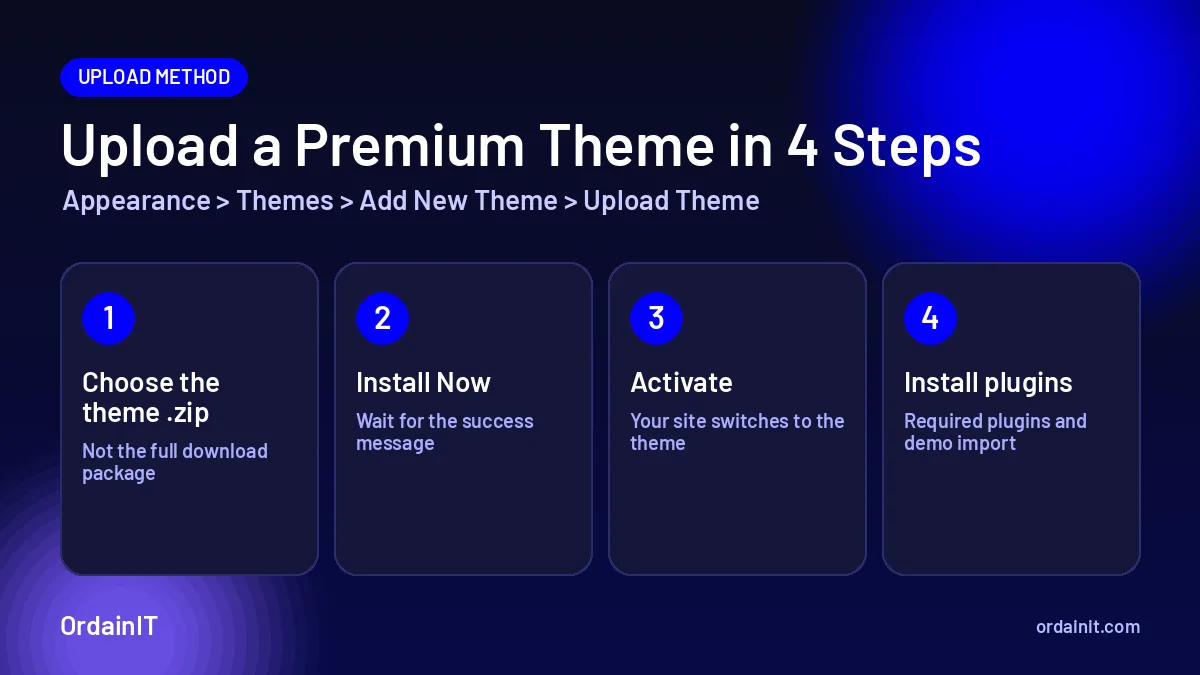
If the theme needs a licence, enter the purchase code where the theme’s documentation says. For example, in the OrdainIT WordPress theme bundle, only Educeet and Bconsult ask for activation, using the purchase code shown in My Account; the other themes work as soon as they are installed.
Use these when the upload button fails or when you manage many sites.
/wp-content/themes/ with an FTP client or your host’s File Manager. Go back to Appearance > Themes, where the theme now appears, and click Activate.wp theme install /path/to/theme.zip --activate for an uploaded file, or wp theme install twentytwentyfive --activate for a directory theme.| Method | Best for | What you need | Time |
|---|---|---|---|
| Dashboard search | Free WordPress.org themes | Admin login | 1 minute |
| Upload .zip | Premium themes | Theme .zip file | 2 minutes |
| FTP / File Manager | Large themes, failed uploads | FTP or hosting login | 5 minutes |
| WP-CLI | Developers, many sites | SSH access | 1 minute |
Nearly every failed install comes down to one of these messages:
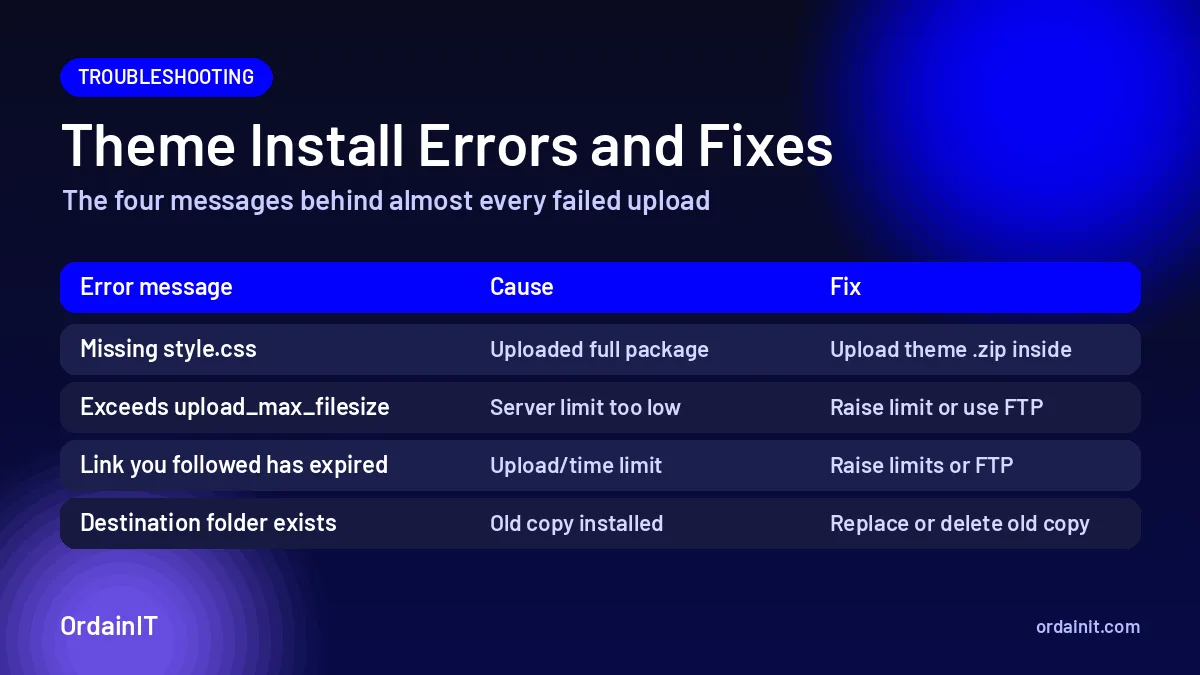
upload_max_filesize and post_max_size, or use FTP instead.Activation is only the start. Run through this short checklist before visitors see the new design:
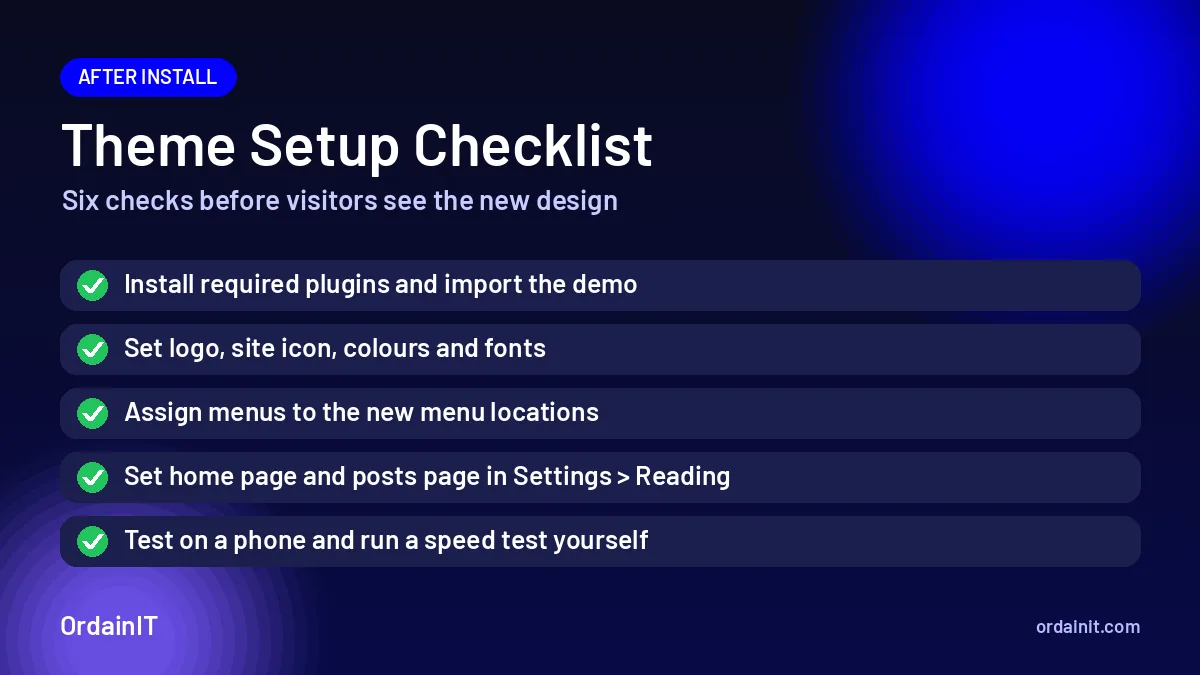
If you plan to change theme files, create a child theme first so updates do not overwrite your edits. Most premium themes ship a ready child theme in the download package.
Knowing how to install a WordPress theme is only half the job; setup takes longer. Every OrdainIT WordPress theme includes free installation and lifetime updates. If you would rather hand over the whole setup (theme, demo import, speed, security and backups), our professional WordPress website setup service does it for a fixed price. Still choosing a theme? Start with our guide to the best WordPress theme for your kind of site.
Go to Appearance > Themes > Add New Theme > Upload Theme, choose the theme .zip, click Install Now and then Activate. Upload the installable theme .zip, not the full download package.
You uploaded the whole download package, which contains the theme .zip, documentation and child theme. Unzip the package and upload only the theme .zip inside it.
Yes. Posts, pages and media stay when you change theme, but layouts, widgets and menus may need to be set again. Back up first and preview the theme before you activate it.
Only if you plan to edit theme files. A child theme keeps your code changes safe when the parent theme updates. Settings made in the Customizer or theme options do not need one.
Uploading third-party themes on WordPress.com requires a plan that allows themes and plugins. On self-hosted WordPress.org sites you can upload any theme.
Chosen a theme or template? The OrdainIT team, which designs and builds its own WordPress themes and templates, can also get your website live. Pick a fixed-price service:
Want a design to start from? Browse OrdainIT WordPress themes, each with free installation and lifetime updates, or see all WordPress services. Not sure what you need? Contact OrdainIT for a free, no-obligation quote.
See OrdainIT’s themes and customer ratings on OrdainIT’s ThemeForest profile.




We reply 24 hours a day, Monday to Saturday. Sunday is our day off.